
This information is updated periodically.
PLEASE TRY THESE SUGGESTIONS BEFORE CONTACTING US.
Technical Guidance
Logging in to the Parenting Program
You should have received an email with the link to register for an account. You will need to enter the name of the program you were assigned.
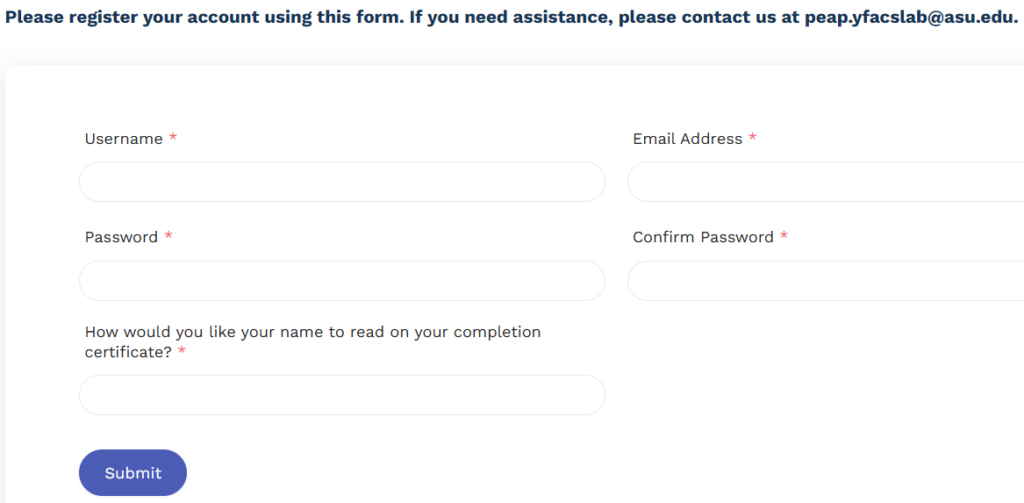
Once you register, you will be taken to “My parenting Program!” page which shows your assigned program. Feel free to bookmark the page for easy access.
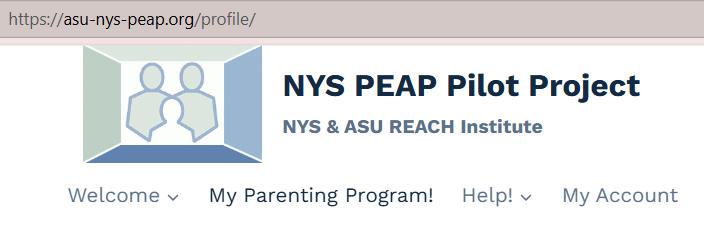
You can return any time by going to the PEAP Pilot Project website and click on the “My Parenting Program” tab and then log in. It
You can either go to the log in page and click on the ‘lost your password” link. OR you can go to the “Help!” tab and select “Lost Password”
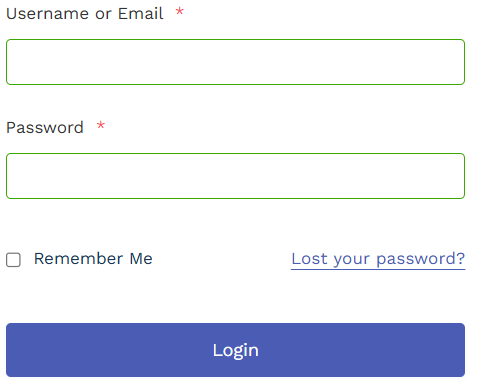
You can enter your email or username to log in
Error Messages
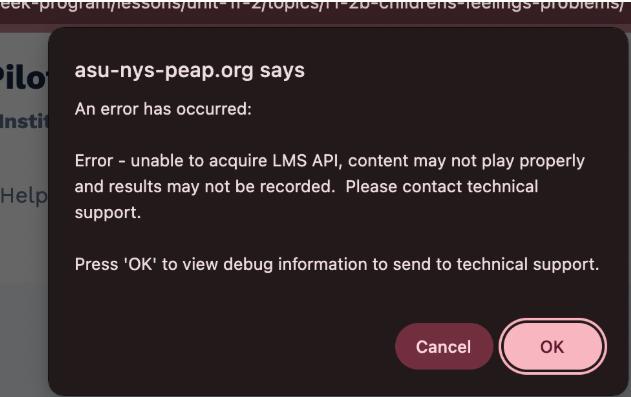
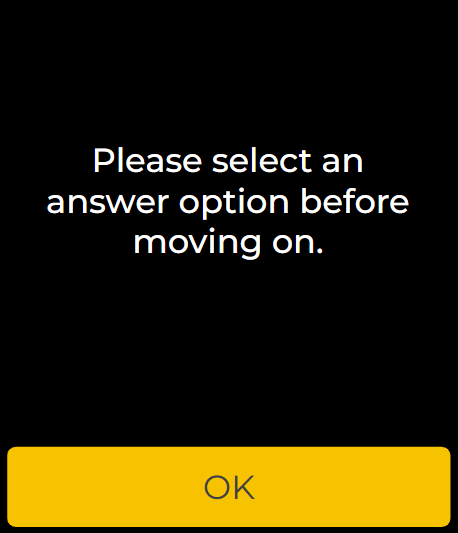
If you get this message, press “Ok” You may need to do it a couple of times.
Click on “Ok” and select an answer choice
Y
Y
In the works
Moving from one topic or unit to the next
The videos progress through each unit automatically. If you see this, please ignore and wait to be taken to the next topic.

This means that you have not provided an answer or have not watched the video(s)

When one topic is finished playing, you can go to the top of the page and click on ‘next step’.
You will know you have completed a unit when you reach the page with homework practice and resources. when you Scroll to the bottom of the page, you will see a green button with a check marked, that says “next unit”


Some exercises show an “I” on the top right corner. This provides information to help you complete the exercise.
Video difficulties
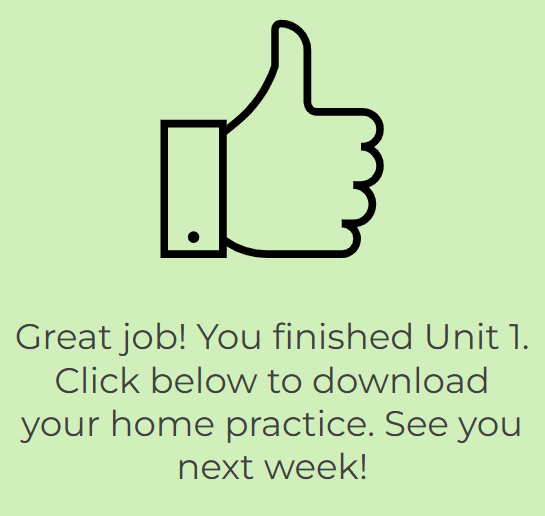
You may see this page at the end of each unit. Please ignore ‘click below’. Instead, go to the top of the page and click on ‘next’ and you will be taken to a page with the handouts and resources for that unit.
Check the strength of your phone signal or Wi-Fi connection

If you see this image, wait a little while. Then, you’ll get a message that you are being redirected to the next topic. If that don’t work you can also click on ‘back to unit’ and find you way back to the next unit.
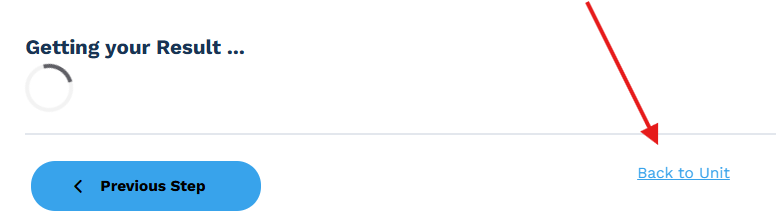

This means the video is transitioning to the next topic. When ready, you can click on “next topic”.
You’ll want to scroll down to make sure you have:
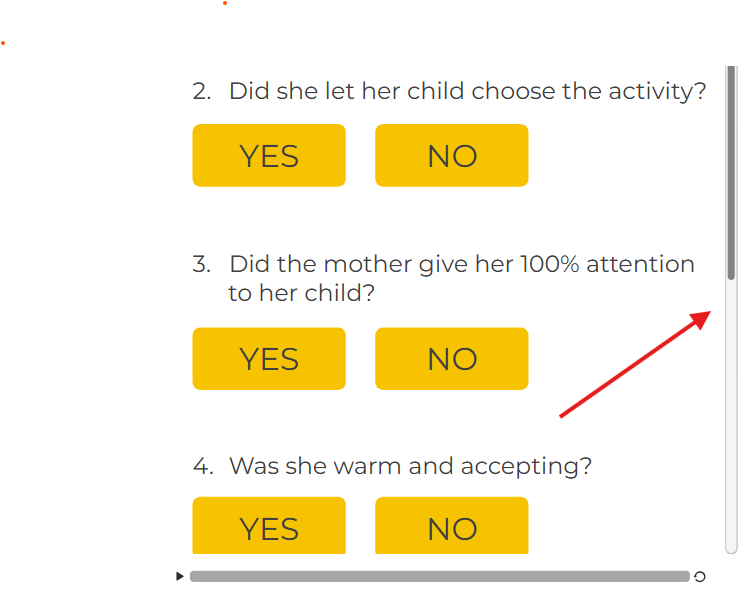
1. Watched the videos
2. Answered all questions

An “X” appears on the top right corner after you’ve watched the video.
Be sure to adjust the volume on your device and/or also the video.
Go to your phone settings and allow ‘screen to turn horizontally. If you don’t see the option, you can search for it in the settings search box
Handouts, emails & Certificate
At the end of each unit, you will be taken to a page with the Home Practice worksheet and resources to download.
Clicking on the small envelop icon will open your email browser and you’ll be able to email the plan to your self.
If you don’t wish to use this feature, you can can a screen shot of the information.
When you click on the ‘down arrow’, the handout will appear. If you don’t see it, check if your computer is allowing pop outs.
At the end of unit 6, you’ll see this message.
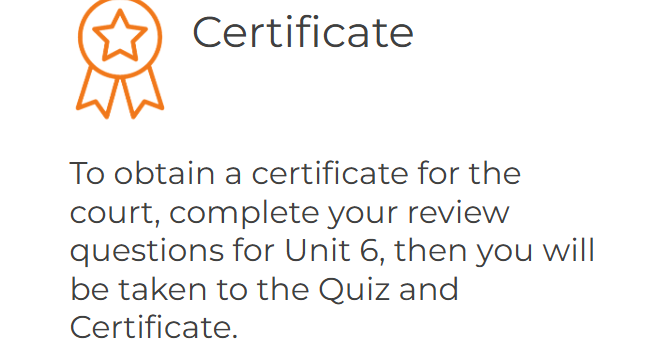
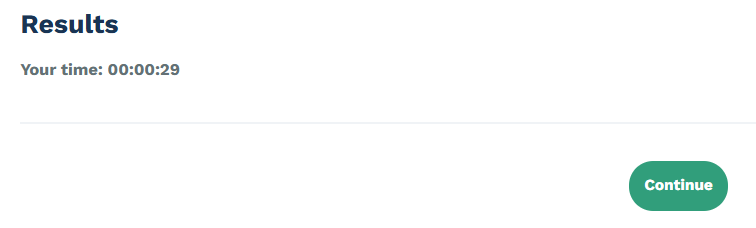
After Unit 6 Home Practice page, you will be taken to a survey and when done, you’ll see a ‘continue’ button.
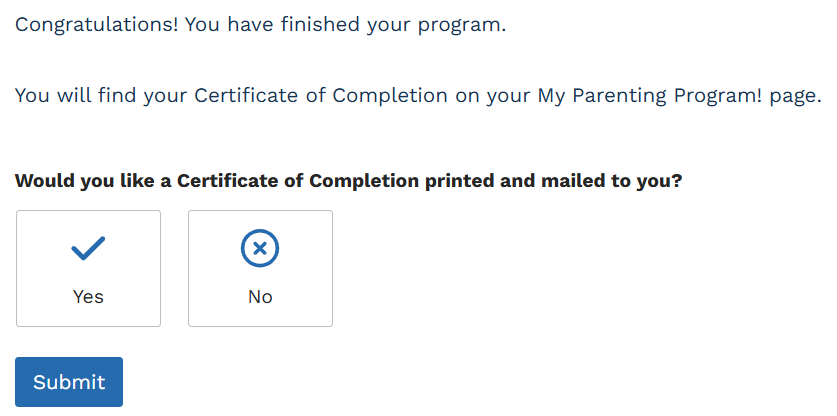
If you need to access your certificate after you have completed the units, you can go to “My Parenting Program” and XXXX
You’ll be asked if you want the certificate mailed to you.
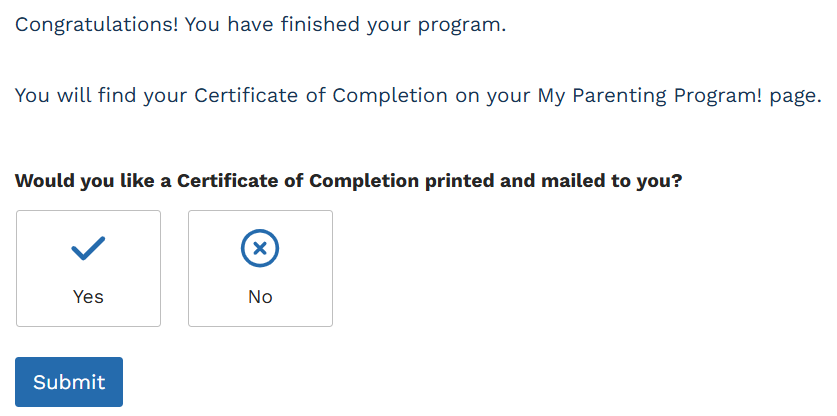
If you click “yes”, it will be ask you for your name and address. Be sure to click “submit”
If click “No”, and then “submit”, you’ll be taken here:

T

Go to your phone settings and allow ‘screen to turn horizontally. If you don’t see the option, you can search for it in the settings search box
Add a single and succinct list item

Add context to your column. Help visitors understand the value they can get from your products and services.